Online Meeting Real-Time Translation Update: TransGull Now Supports Two-Way Simultaneous Interpretation

TransGull Team
Jan 27, 2026
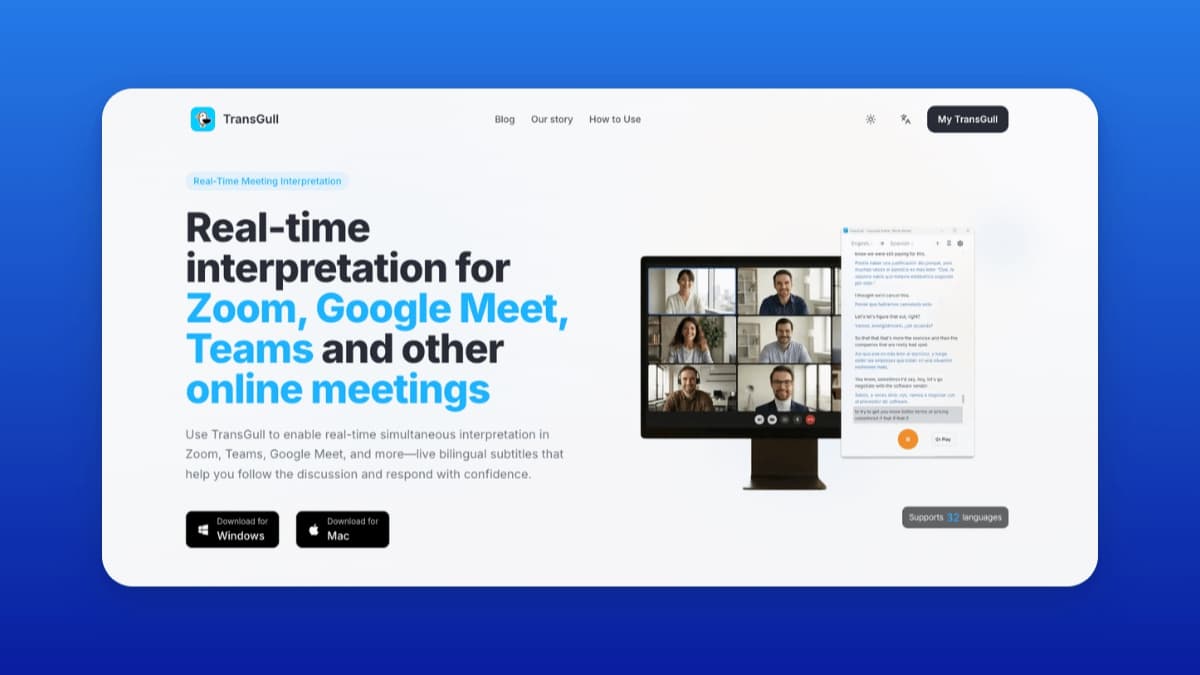
In the latest PC release of TransGull, we’ve improved the simultaneous interpretation experience specifically for online meeting scenarios. TransGull now supports real-time translation for both parties in an online meeting.
A New Way to Communicate Across Languages
During the meeting:
- What the other person says is translated into your language, so you can directly hear the translated audio.
- What you say is translated into the other person’s language, so they can directly hear the translated audio too.
Both sides can participate using their familiar languages. TransGull continuously recognizes the meeting audio and keeps translating between the two languages for both parties. After you enable translated audio playback, you can choose to play the language you understand to yourself, and play the other language to the other participant. Even without reading subtitles, both sides can communicate naturally by speaking and listening.
This update supports all major online meeting platforms. You only need to install the latest TransGull PC client and follow the guided setup to start using it.
Designed for all cross-language online meeting scenarios—whether it’s communicating with overseas clients, collaborating in multilingual teams, online discussions, or trainings—this feature helps you handle them with ease.
A Better Experience
Unlike many traditional solutions, TransGull’s online meeting simultaneous interpretation does not require adding any meeting bot. You simply open TransGull on your computer, enable simultaneous interpretation, and finish the microphone setup to use it.
The other participant doesn’t need to install TransGull or do any additional setup.
It’s like having a 24/7 on-call interpreter, always ready to start translating for your meeting.
How to Use
Before the meeting starts or during the meeting, enable TransGull’s simultaneous interpretation feature and select the two languages to begin.
For first-time use, you’ll need to install the driver on your computer, follow the guidance to switch the microphone settings in your meeting app, and then in TransGull choose which language is played to the other participant and which language is played to yourself.
Note: To improve speech recognition quality, we recommend wearing headphones during online meetings.
For more tips and FAQs, please see our Online Meeting Real-Time Simultaneous Interpretation Guide。