Live Caption Translation Tools: What to Use for Meetings, Live Streams, and Online Classes

Julian Mercer
Aug 6, 2026

When you watch a foreign-language live stream, the audio may come from the same phone. In an online meeting, it comes from the meeting app on your computer. In a classroom or conference hall, it comes from the speaker or room sound system. All three situations can benefit from live caption translation, but they require different ways of capturing audio.
If a tool cannot capture the correct audio source, a long language list and polished caption design will not help. First determine where the audio comes from, which device you are using, whether you only want to read captions or also hear the translation, and whether you are listening in one direction or both sides need to speak.
A live caption translation tool should not be judged by a single standard. Meetings, live streams, and online classes work differently: a floating caption window may suit a phone, continuous translated audio may suit a computer, and a shared caption link may help a group. The sections below explain which capabilities matter and what to choose for each setting.
Five capabilities to check in a live caption translation tool
Live caption translation is more than turning one sentence into English. While one sentence is still being processed, the next may already have started, so the tool must handle audio capture, recognition, translation, and caption display at the same time.
Check these five points:
- Can it capture the correct audio source? This might be internal phone audio, sound from a selected computer app, or a room microphone.
- Can it recognize continuously and translate with context? You should not need to restart recording for every sentence, and the translation should account for the surrounding content.
- Can it show the source and translation together? Bilingual captions make it easier to verify names, numbers, negatives, and technical terms.
- Do the captions fit the current screen? A floating window is useful on a phone, while a separate caption window works better beside a meeting or class on a computer.
- Does it provide the output you need? You may want captions only, translated audio through earphones, a full-text copy, or a live caption link for other people.
These points matter more than comparing language counts alone. Finding your language on a list only means you can start testing. A smooth experience still depends on whether the device, audio source, and caption layout match the situation.
Translation quality is another reason to consider TransGull. Its AI-powered simultaneous interpretation uses surrounding context to reduce literal mistranslations and awkward wording, producing more accurate and natural translations for meetings, live streams, and online classes.
What should you use for a meeting, live stream, or online class?
| Your situation | Where the audio comes from | Recommended device and mode | What to check |
|---|---|---|---|
| Watching a foreign-language live stream on one phone | Audio playing inside the phone | Live Stream One-Way Interpretation in the mobile app | Whether it can capture internal audio and show bilingual captions in a floating window |
| Watching a live stream or online class on a computer | A browser or media app on the computer | One-way interpretation in the desktop app | Whether it can capture a selected app, keep captions updating, and play translated audio |
| Joining a foreign-language online meeting on a computer | The meeting app on the computer | One-way interpretation in the desktop app; use the two-way meeting setup when both sides need to speak | Whether you only need to understand the other side or also need to translate your own speech for them |
| Attending an in-person class, training session, or meeting | A presenter, loudspeaker, or people speaking in the room | One-way interpretation in the mobile app using the microphone | Whether the audio pickup is clear, translated audio is available through earphones, and captions need to be shared |
On a phone, a floating caption window makes it easy to keep watching a live stream. For a longer meeting or online class, a computer can place captions beside the content and continue playing the translation. In person, the phone can capture room audio through its microphone. Once the device matches the situation, the remaining setup is straightforward.
Watching a foreign-language live stream on a phone: internal audio and floating captions
If you watch a foreign-language live stream on a phone and want the translation on that same phone, the caption tool must capture the audio playing inside the device and place the result over the live-stream screen.
TransGull's live stream translation supports Live Stream One-Way Interpretation on mobile:
- Open the TransGull app and enter Simultaneous Interpretation.
- Choose Live Stream One-Way Interpretation, then set the live-stream language and your target language.
- Grant the audio-recording and floating-window permissions requested by the operating system.
- Start interpretation and return to the live stream.
- Follow the source and translated captions in the floating window.
Mobile operating systems can restrict internal audio capture and simultaneous audio playback, so captions should be the priority in this setting. If you want to watch while continuously hearing the translation through earphones, a computer is a better fit.
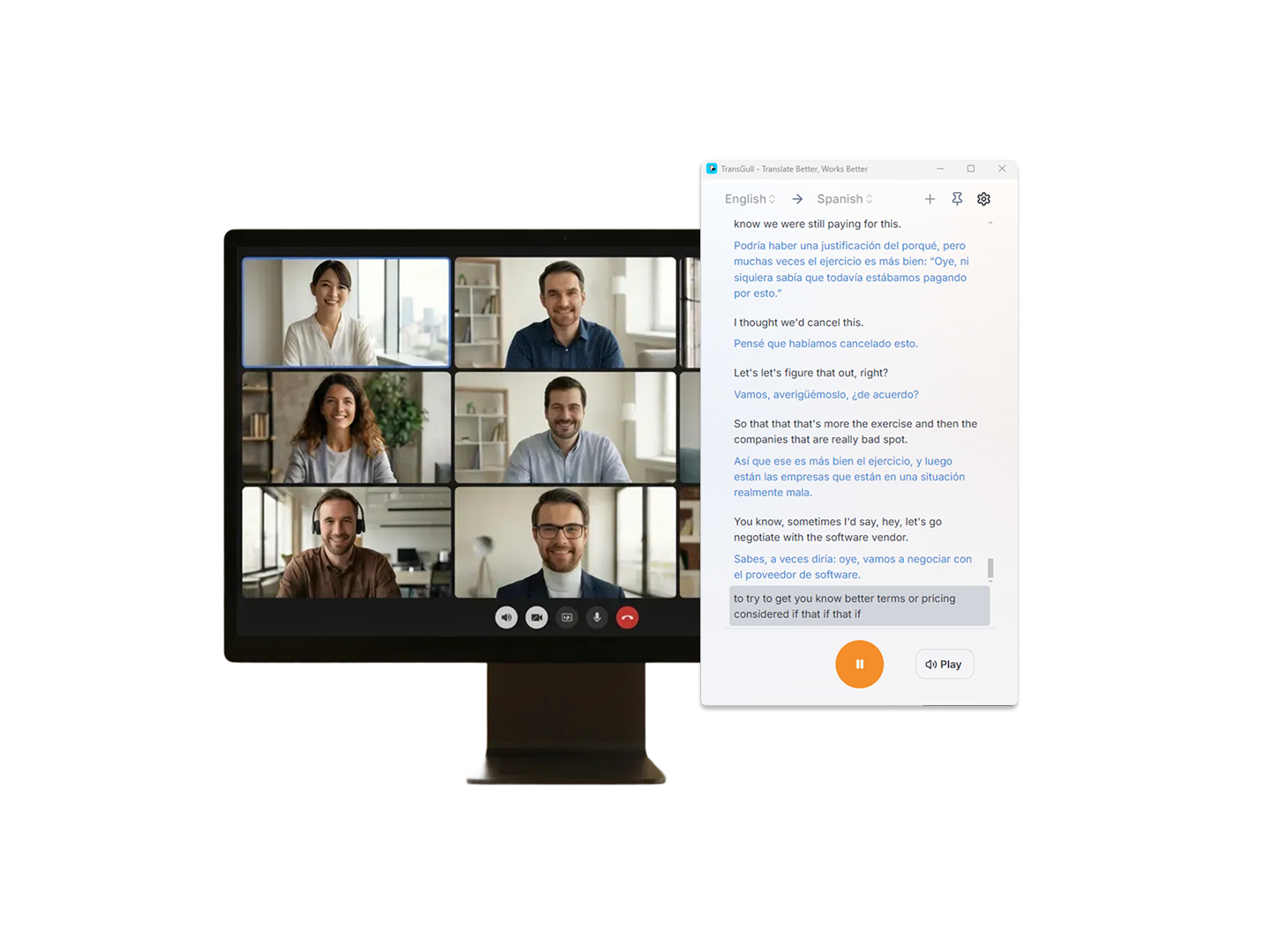
Joining a meeting or online class on a computer: capture one selected app
A computer may be playing browser audio, notifications, music, and meeting audio at the same time. To keep unrelated sound out of the captions, select the app that should be translated instead of recording every sound by default.
In the TransGull desktop app:
- Open One-Way Interpretation and choose the source and target languages.
- Set the audio source to activity on the computer.
- Choose the option to record audio from a selected app, then select the meeting, live-stream, or class app.
- Play a short sample and confirm that both the source and translated captions continue updating.
- Place the caption window beside the content, or use earphones if you prefer translated audio.
If only the other side is speaking and you are listening, one-way interpretation covers the main task. If you also need your speech translated and sent into the meeting, use the two-way setup in online meeting translation, and test both the microphone and translated-audio output before the meeting begins.
Attending an in-person class or training session: use the microphone
In a classroom, conference hall, or in-person meeting, the audio is not playing inside the phone. It comes from the presenter or room sound system. In this case, start one-way interpretation on the phone and let its microphone capture the room audio continuously.
Keep three points in mind:
- Place the phone where the speech is clear: it does not need to be next to the loudspeaker, but avoid obvious obstructions and constant background noise.
- Check the source text first: if recognition is broken or incomplete, adjust the phone position or audio conditions before judging the translation.
- Decide whether to read or listen: use earphones when you need to keep looking at the presenter, and check bilingual captions when names, terms, or numbers matter.
If other people also need the translation, share the live captions by link or QR code so everyone can follow on their own device. See AI Simultaneous Interpretation for the complete one-way and two-way scenarios.
Common problems when using live captions
No captions appear
This is often caused by an incorrectly configured audio source. A phone live stream needs internal device audio, a desktop live stream or online class needs the correct app selected, and an in-person talk needs microphone capture. Then confirm that the operating system has granted audio-recording permission.
Captions appear, but they are hard to follow
Move the caption window to a place that is easier to scan. Read the translation first and check the source only for names, numbers, and technical terms. On a computer, using earphones for translated audio may be easier than repeatedly looking down or switching windows.
Several people need captions
Do not make everyone gather around one screen. Share the live captions so each person can follow the translation on their own device without covering the main content.
What to choose for meetings, live streams, and online classes
Live caption translation is most useful when it lets you keep following the exchange without pausing the content or switching repeatedly between tools.
- A foreign-language live stream on a phone: use Live Stream One-Way Interpretation with bilingual captions in a floating window; no second device is required.
- A meeting or online class on a computer: let TransGull translate audio from the selected app, read captions beside the content, or listen through earphones.
- An in-person class or training session: capture room audio with the phone microphone; listen when you need to watch the presenter and read bilingual captions when details need checking.
- Both sides need to speak in a meeting: switch to two-way meeting translation so each side can understand the other.
TransGull brings these options into one product: floating live-stream captions on mobile, meeting and class translation on desktop, and microphone capture for in-person settings. Match the mode to the situation, and the source and translated captions can keep updating while your attention stays on the meeting, live stream, or class itself.