How to Choose an Audio Translation App for Live Speech, Playing Audio, and Files

Julian Mercer
Aug 9, 2026

You usually start looking for an audio translation app when foreign-language sound is already in front of you.
It may be a person waiting for your answer, a livestream playing on your laptop, or a podcast you want to understand without a transcript. The problem feels the same—you can hear the sound, but not follow the meaning—yet each situation needs a different kind of translation.
Use conversation translation when two people are taking turns. Use live interpretation when a class, meeting, or stream is still running. If you already have a podcast link or audio file, import it first and listen with time-aligned bilingual subtitles.
| What is happening now? | Best translation workflow |
|---|---|
| Someone is speaking directly to you | Conversation translation for short exchanges; two-way interpretation for longer conversations |
| A phone or computer is playing a stream, meeting, or lesson | One-way interpretation or live captions for the current audio |
| You have a podcast link, recording, or local audio file | Import the audio, then play the original while reading bilingual subtitles |
| You need a new audio track in another language | Use a dubbing workflow that supports editing and audio export |
Someone is talking to you: translate the conversation in real time
At a restaurant, hotel, shop, or train station, the other person cannot wait for an entire recording to be processed. You need to understand one sentence, answer, and keep the exchange moving.
For turn-taking, conversation translation is the simplest option. Choose the two languages, tap the microphone for the person who is speaking, then show or play the translation. The other person answers with their own microphone, and the app translates the reply.
Before relying on it for something important, try a sentence with a time, place, and number, such as “My booking is for three o’clock tomorrow.” Check that names and numbers were recognized correctly. If the source text is wrong, correct it before translating again. The conversation translation guide shows the controls step by step.
For a longer meeting or an extended conversation, tapping a button for every sentence becomes disruptive. Switch to two-way interpretation so both languages can be recognized continuously and each person can follow the captions or translated speech.
Your computer or phone is playing audio: keep the translation moving with it
A livestream, online meeting, webinar, or class does not pause while you wait. Here, the translation needs to follow the audio as it plays, which is what one-way interpretation or live captions are designed to do.
On a computer, select the app or system audio that is playing the content. This gives the translator a cleaner source than turning up the speakers and capturing them again through a room microphone. On mobile, choose the microphone or live-audio source offered by the current mode.
With TransGull AI Simultaneous Interpretation, choose the source that matches the situation:
- For an in-person lecture or speech, use the microphone to capture the room;
- For a meeting, stream, or class playing on your computer, select the relevant computer-audio source;
- Choose one-way mode when you only need to understand the speaker, or two-way mode when you also need to respond;
- Listen to translated speech when your eyes need to stay on the screen, and check both subtitle lines when a name, number, or technical term matters.
You can also use live translation for a prerecorded program that is playing right now. If you expect to replay sections, slow the audio down, or return to a particular line later, importing the recording is a better fit.
You already have an audio file: process it, then listen at your own pace
Podcasts, course recordings, and local audio files already have a beginning and an end. The app can process the complete recording first and create source and translated subtitles tied to the audio timeline.
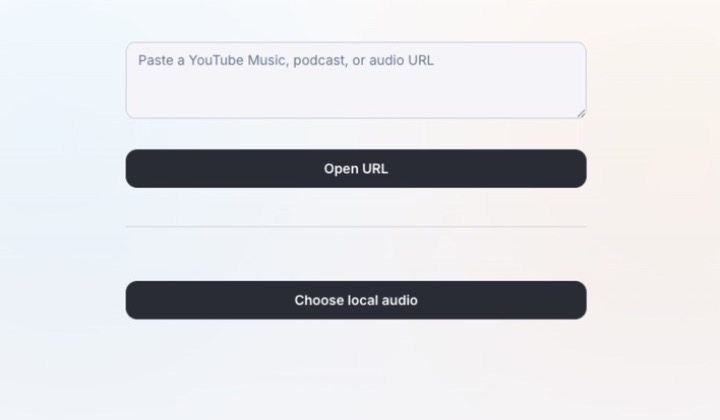
Open Audio Translation in the TransGull desktop app, paste a supported audio or podcast link, or choose a local audio file. Confirm the language actually spoken in the recording, then select the language you want to read. If the source provides subtitles, they can be used directly; otherwise, speech recognition creates the source text.
When processing is complete, TransGull plays the original audio while the source and translated lines follow the current timestamp. Click a subtitle row to jump back to that sentence, lower the playback speed when speech is too fast, or add a long recording to Listen Later. If one line contains a recognition error, edit that line and translate it again instead of restarting the whole recording.
This is especially useful for long-form listening: you no longer need to hold a phone beside a speaker or pause every few seconds to copy a translation. Process the audio once, then work through it at your own pace.
Do you want subtitles, translated speech, or a new audio track?
“Translate this English audio into Spanish” can describe three very different results.
Bilingual subtitles are best when you want to understand and verify the content. The translation carries the meaning, while the source line helps you check names, places, titles, and specialist terms. For podcasts and recordings, the subtitles should also stay aligned with playback so you can return to the original sentence.
Translated speech is more useful when you are walking, watching a live screen, or listening to an in-person presentation. Live interpretation can play the translation while the speaker continues, leaving your eyes free for the room or video.
A publishable audio track in another language is a dubbing job. It requires target-language audio export, timing controls, and line-by-line editing for names, terminology, and tone. TransGull Audio Translation is built for listening to the original with synchronized bilingual subtitles; it does not create a dubbed audio file. For live talks, meetings, and streams, use Simultaneous Interpretation to read captions and hear translated speech as the content happens.
Wherever the foreign-language audio comes from, TransGull can handle it
If someone is waiting for your reply, open Conversation Translation. If a meeting, stream, or lesson is still playing, open Simultaneous Interpretation and choose the microphone or device audio. If the podcast, recording, or file is already available, open Audio Translation and import it.
Once the source and target languages are selected, the rest follows the situation: live content is translated as it happens, while saved audio produces synchronized bilingual subtitles after processing. Read the source line when a name or technical term needs checking, and listen to translated speech when watching the screen matters more than reading.
The next time foreign-language audio gets in the way, open TransGull and choose the entry that matches the sound in front of you. You can keep the conversation moving, stay with the program, or finally finish the audio you wanted to hear.